Transfer a project into an org
Small teams almost always build this backwards. Someone creates a Google Cloud project on a personal account to get started, and the organization arrives weeks later. The project is now in the wrong place.
The obvious fix does not work. You open the project’s IAM & Admin page, you give yourself the role that moves projects, and nothing changes. The button stays grey. The error asks for a permission you appear to already hold.
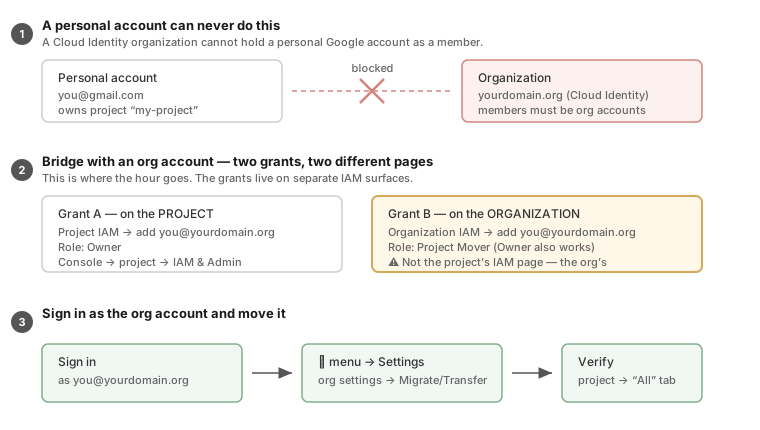
Why the obvious path fails
A Cloud Identity organization is a closed membership boundary. It cannot hold a personal Google account as a member or an administrator. No role assignment changes this. The organization has no way to name that account at all.
So the organization cannot give a role to the account that owns your project. A move into an organization needs a role inside that organization. The account that holds the project and the account that can receive it are two different accounts.
A second trap waits below the first. The move needs the permission resourcemanager.projects.move. The organization grants that permission, not the project. The project’s own IAM & Admin page offers a Project Mover role, so it looks like the correct page. It is not. Ownership of a project does not include the right to move that project elsewhere. The destination controls that right.
Before you start
-
The organization exists. You can sign in to an account inside it, for example
[email protected]. -
That organization account is a Super Admin, or a Super Admin can grant organization-level roles for you.
-
You can sign in to the personal account that owns the project.
You must change between two Google identities several times. Use a second browser profile. It is faster than repeated sign-out and sign-in.
Step 1 — Give the organization account Owner on the project
Sign in as the personal account that owns the project.
-
Open the project in the Google Cloud console.
-
Go to IAM & Admin, then IAM.
-
Select Grant access.
-
Add the organization account, for example
[email protected]. -
Assign the role Owner.
The organization account can now administer the project. The project is still outside the organization.
Step 2 — Give the same account Project Mover on the organization
Most people miss this step.
-
Change the console scope from the project to the organization.
-
Use the resource picker at the top of the console. The ⋮ menu at the top right also opens Settings for the organization.
-
Open the IAM page for the organization. Do not use the IAM page for the project.
-
Select Grant access.
-
Add the same organization account.
-
Assign the role Project Mover (
roles/resourcemanager.projectMover).
|
Read the heading before you grant the role. If the breadcrumb names your project, the page is wrong. The heading must name the organization. |
The role Organization Owner also works. Project Mover is the narrower grant, and it is sufficient. You do not need to own the whole organization to move one project.
Step 3 — Move the project
Sign in as the organization account.
-
Open the project.
-
Select the ⋮ menu at the top right.
-
Select Settings.
-
Select the migrate or transfer action.
-
Select the organization as the destination.